Using gift vouchers

Using gift vouchers

Using gift vouchers

Gift vouchers let customers purchase your services as a gift for someone else. This article explains how gift vouchers work in Nabooki and walks you through enabling them, configuring settings, embedding the widget on your website, and managing sold vouchers.

What are gift vouchers?

Gift vouchers are prepaid credits that customers can buy online and give to others. The recipient redeems the voucher code at checkout when making a booking — the voucher value is applied to the total cost of their booking.
When a customer purchases a voucher, they receive a confirmation email with a link to download the voucher. They can then forward it to the recipient or print it.
Vouchers are managed under Sales > Gift Vouchers, where you can view each voucher's status, redemption history, and expiry date.

⚠️ Warning: Gift vouchers require online payments to be enabled on your account. Set up a payment gateway before enabling vouchers.

Before you start
  1. Online payments must be enabled.

Enable gift vouchers

  1. Go to Inventory > Gift Vouchers using the left navigation menu.
  2. Toggle the switch to On.
  3. Configure the default settings:
    1. Minimum and Maximum Amount — set a price range or a fixed price for vouchers.
    2. Expiration — set how long vouchers remain valid from the date of purchase.
    3. Booking URL (optional) — add a link to a specific bookable service. This is useful if you offer multiple services and want the voucher to direct recipients to the right one.
    4. Update the general description, terms and instructions where needed. 
  4. Click Update to save your settings.


Manually create a gift voucher

You can create vouchers on behalf of customers — for example, for phone orders, in-person sales, or special arrangements.
  1. Go to Sales > Gift Vouchers.
  2. Click + Add new.
  3. Enter the recipient details, voucher amount, and expiry date in the fields provided.
  4. Click Create to generate the voucher.


Embed the gift voucher widget on your website

The Gift Voucher widget lets customers purchase vouchers directly from a page on your website.

  1. Go to Online Widgets in the left navigation menu.
  2. Select Gift Voucher Widget from the widget type dropdown.
  3. Click Preview to see how the widget will appear to customers.
  4. Copy the iFrame code displayed on the page.
  5. Paste the iFrame code into a dedicated page on your website where you want customers to purchase vouchers.

💡 Tip: Once the widget is live, you can share the page link via email, social media, or your website navigation to help customers find it.To sell gift vouchers directly on your website, you can use the Gift Voucher widget. This widget provides a ready-made page where customers can easily purchase vouchers online.


Manage sold gift vouchers

  1. Go to Sales > Gift Vouchers.
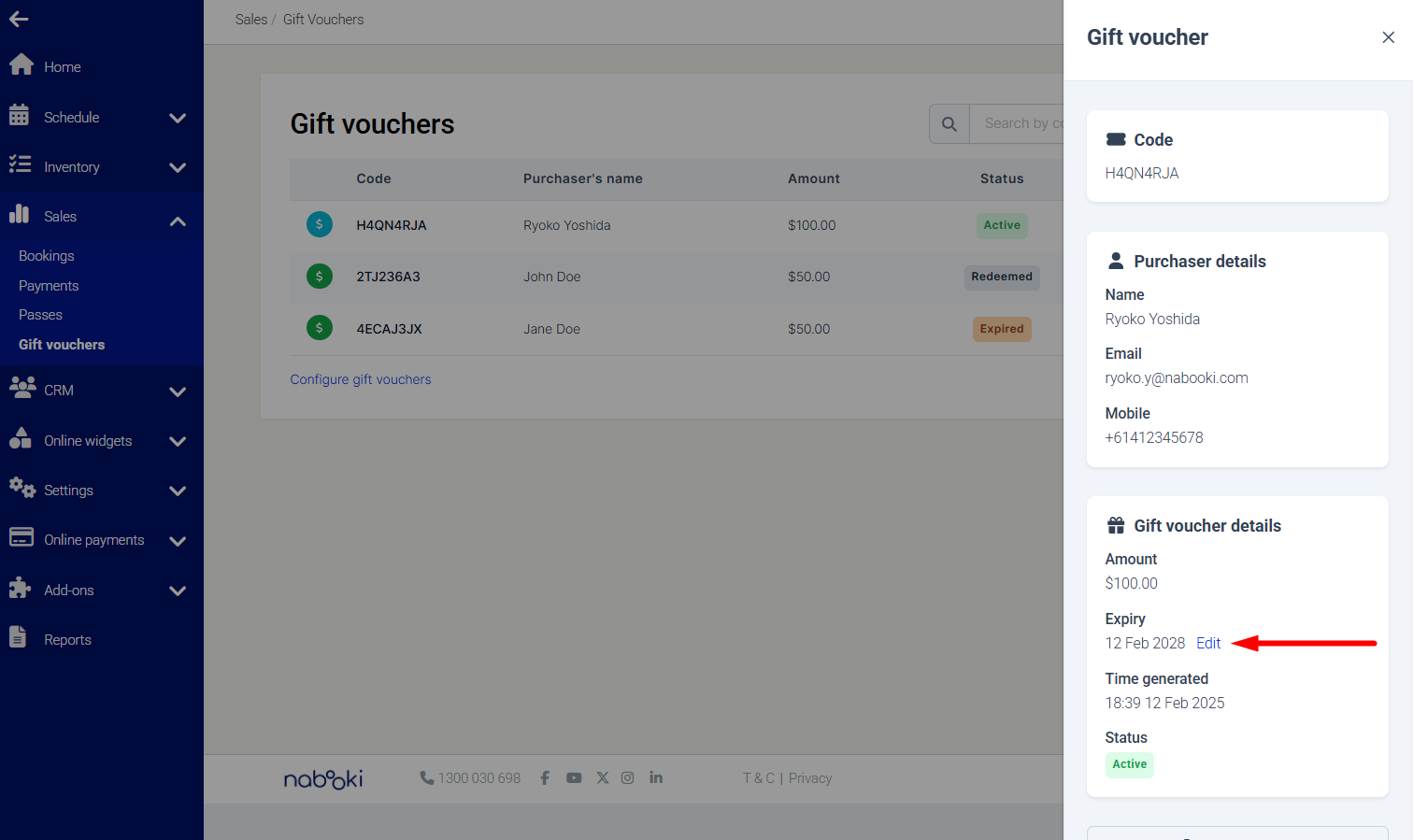
  2. Review the voucher list — each row displays the voucher code, purchaser name, amount, and status (Active, Redeemed, or Expired).
  3. Click View to see full details for an individual voucher.


Edit a voucher's expiry date

  1. Click View on the voucher you want to update.
  2. Click Edit next to the expiry date.
  3. Update the date and save.


View a booking made with a voucher

If a voucher has been redeemed, click View Booking on the voucher record to open the associated booking in the Calendar.


Customer Gift Voucher Experience

To customers the purchase experience for a gift voucher will look like this:


Troubleshooting & FAQs

Can I create gift vouchers manually?

Yes, as a merchant you can manually create gift vouchers through the Sales > Gift Vouchers section. This is helpful for processing phone orders, walk-in customers, or handling special requests. You can customise details such as the recipient’s name, voucher amount, and expiry date.

How do customers buy gift vouchers online?

Customers can purchase gift vouchers through your website by using the Gift Voucher widget or via your integrated booking widget, which will display once configured.

Once purchased, customers will receive a confirmation email containing their unique voucher code and redemption instructions.

How can customers redeem their vouchers?
Customers redeem vouchers by entering the unique voucher code during the standard booking process. The system will automatically apply the voucher credit to their booking total. If the voucher value exceeds the booking price, the remaining balance stays available for future use until fully redeemed or expired.
Can gift vouchers expire?
Yes, gift vouchers can be set to expire based on the expiry period configured in Settings > Gift Vouchers. Once expired, vouchers cannot be redeemed, so it's important to communicate the expiry terms clearly to customers.
Will email notifications for Gift Vouchers be automatically sent?
Email notifications for Gift Vouchers are sent only to the email address configured in your Nabooki account settings and the customer.
Ensure this email is accurate and monitored, so customers reliably receive their voucher codes and purchase confirmations.
 

Need Help?

If you need assistance, contact our support team:
💬 Live Chat: Click the chat icon in the bottom-right corner of the screen.
📧 Email: support@nabooki.com


    • Related Articles

    • Using promo codes

      Create and use promo codes Promo codes let you offer discounts to customers as a buying incentive — useful for running promotions, rewarding loyal customers, or filling slow periods. This guide explains how promo codes work and walks you through ...
    • Using busy-time

      Using busy-time Busy time lets you block specific hours in your calendar so customers can't book during those periods. Use it to reserve time for breaks, meetings, maintenance, or anything else that takes you off the schedule temporarily. This ...
    • Using the Timeline view

      Using the timeline view The timeline view gives you a horizontal, side-by-side display of all bookings across your staff and resources for a single day. It's the fastest way to spot gaps in your schedule, check availability at a glance, and make ...
    • Using the Agenda view

      Using the Agenda view The Agenda view gives you a chronological list of upcoming bookings, making it easy to see what's on without navigating a full calendar layout. This article explains how the Agenda view works and walks you through using it to ...
    • Using waitlist bookings

      Using waitlist bookings When a schedule reaches full capacity, a waitlist lets customers register their interest so they can be offered a spot if one becomes available. This article walk you through enabling waitlist and confirming waitlist bookings. ...