Fine-tune staff and resources
Fine-tune staff and resources
Fine-tuning lets you adjust a staff or resources availability for specific dates without changing its regular schedule — for example, if a staff is only available for half a day.
The steps below cover how to fine-tune hours from the Schedule > Calendar view, day-by-day. If you want to adjust or fine-tune hours from staff or resource section, use the articles below:
Before You Start:
- Resources or staff must be set up to fine-tune.
- This method is to adjust a single date, or adjust day-by-day.
Step-by-step instructions
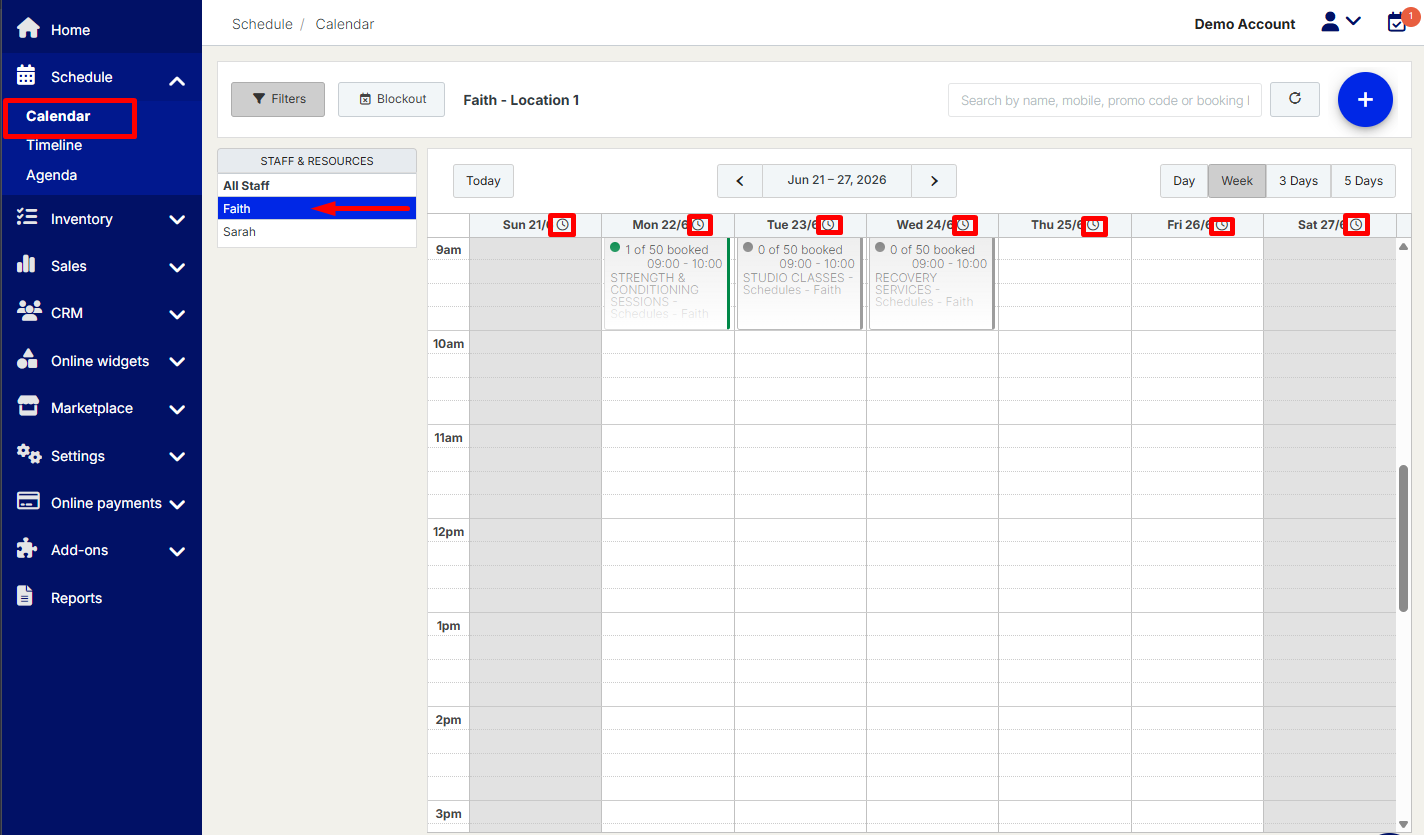
- Go to Schedule in the left-hand menu and select Calendar.
- In the Staff & Resources panel, select the individual staff member or resource you want to adjust.
- Navigate to the date you want to change.
- Click the Fine-Tune Hours icon (clock icon) for that date.
- Set the new start and end times.
- Click Update.
To remove the fine-tune adjustment, click the Fine-Tine Hours icon for that date and reset.
Troubleshooting & FAQs
Why isn’t Fine-Tune available?
Ensure you have selected an individual staff member or resource—Fine-Tune is not available in the all staff/resources calendar overview.
Why isn’t Fine-Tune updating my availability?
🔹 Ensure the fine-tune changes are saved correctly.
🔹 Check that another setting (e.g., busy time or blocked schedule) isn’t conflicting with the change.
🔹 Check that another setting (e.g., busy time or blocked schedule) isn’t conflicting with the change.
Can I apply Fine-Tune to multiple dates at once?
Yes! Use the Staff/Resource Settings method to select multiple dates.
Does Fine-Tune override my regular schedule permanently?
No, it only affects the dates you manually select. Your standard schedule remains unchanged.
Need Help?
💬 Live Chat: Click the chat icon in the bottom-right corner of the screen.
📧 Email: support@nabooki.com